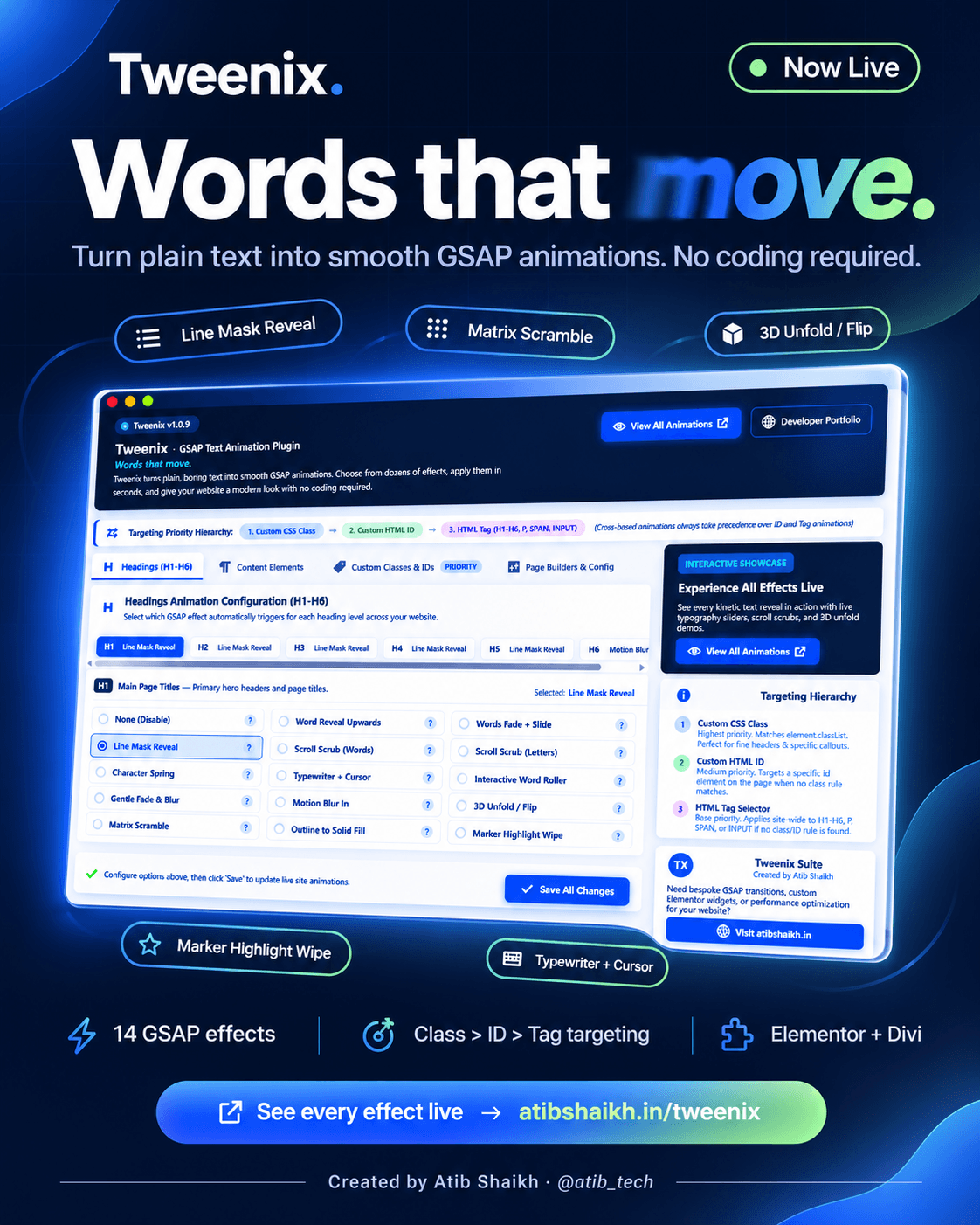
Tweenix: GSAP WordPress animation plugin
Static headings and plain images can make a website feel flat. Adding motion can instantly make a website feel more engaging, but writing custom GSAP code for every element takes time and technical knowledge.
Tweenix makes website animation easier.
Tweenix is a GSAP-powered WordPress plugin that lets you animate both text and images without writing JavaScript. Choose from 14 text animation effects and 2 scroll-triggered image reveal effects, select the elements you want to animate, and bring your website to life with just a few clicks.
Download Tweenix · Explore All Animations
What Is Tweenix?
Tweenix is a WordPress animation plugin built on GSAP (GreenSock Animation Platform), a popular JavaScript animation library.
It provides a simple settings panel where you can configure animations for different website elements without manually writing animation code.
With Tweenix, you can:
-
Animate text: Apply animations to headings (H1–H6), paragraphs, spans, and input fields.
-
Animate images: Add scroll-triggered directional mask and blur-to-clear reveals.
-
Target specific elements: Apply animations site-wide using HTML tags or target individual elements using custom CSS classes and IDs.
-
Control animations: Choose which elements animate and which remain static.
Whether you use Elementor, Divi, or the standard WordPress editor, Tweenix gives you more control over how your website looks and feels.
14 GSAP Text Animation Effects
Tweenix includes 14 carefully selected text animation effects, covering everything from simple entrance animations to interactive and scroll-based effects.
| # | Animation Effect | Description |
|---|---|---|
| 01 | Word Reveal Upwards | Words lift into view from behind a clean mask. |
| 02 | Words Fade + Slide | Each word glides upward while fading into view. |
| 03 | Line Mask Reveal | Text lines rise from an invisible baseline. |
| 04 | Scroll Scrub (Words) | Word opacity changes according to scroll position. |
| 05 | Scroll Scrub (Letters) | Individual letters light up as visitors scroll. |
| 06 | Character Spring | Characters bounce smoothly into place. |
| 07 | Typewriter + Cursor | Text appears character by character with a blinking cursor. |
| 08 | Interactive Word Roller | Words rotate through a 3D track on hover. |
| 09 | Gentle Fade & Blur | Text gently rises and transitions from blurred to sharp. |
| 10 | Motion Blur In | Words move from soft focus into sharp detail. |
| 11 | 3D Unfold / Flip | Words unfold with a dimensional perspective. |
| 12 | Matrix Scramble | Random characters transform into readable text. |
| 13 | Outline to Solid Fill | Outlined letters gradually fill with colour as visitors scroll. |
| 14 | Marker Highlight Wipe | A marker-style stroke sweeps behind the text. |
You can preview all 14 effects on the official Tweenix animation showcase.
Image Reveal Effects: Bring Images to Life
Animations aren’t just for typography. Images also play an important role in creating engaging website experiences.
Tweenix includes an optional Image Reveal Effects feature that adds smooth, scroll-triggered animations to images as they enter the visitor’s viewport.
Two image animation effects are available:
1. Directional Mask Reveal
Reveal images using a moving mask that uncovers the image from your selected direction.
Choose from four directions:
-
Left to right
-
Right to left
-
Top to bottom
-
Bottom to top
This effect works particularly well for hero images, portfolio projects, featured content, and website galleries.
2. Blur to Clear
Give images a smooth entrance by starting with a blurred appearance and gradually transitioning into sharp focus.
The effect combines a gentle fade and scale animation to create a clean reveal as visitors scroll down the page.
Performance consideration: The image-reveal script loads only when Image Reveal Effects are enabled. Websites using only text animations won’t load this additional script.
Watch Image Reveal Effects Live
Key Features of Tweenix
Tweenix combines typography animation, image reveals, and flexible element targeting in one WordPress plugin.
Here’s what makes it useful:
-
14 text animation effects: Word reveals, line masks, character animations, typewriter effects, blur, 3D flips, matrix scramble, and more.
-
2 image reveal effects: Directional mask reveals and blur-to-clear animations.
-
Flexible targeting: Apply animations using HTML tags, custom CSS classes, or element IDs.
-
Elementor and Divi compatibility: Configure animations for popular WordPress page builders.
-
Scroll-based animations: Create effects that respond to the visitor’s scrolling position.
-
Interactive animations: Add hover-based effects such as the Interactive Word Roller.
-
Reduced-motion support: Respect visitors’ operating-system accessibility preferences.
-
Header and footer exclusions: Keep specific website sections static.
-
Optional Lenis smooth scrolling: Enable smooth scrolling where required.
Smart Element Targeting: Class Beats ID Beats Tag
One of the most useful features of Tweenix is its element-targeting priority.
You don’t need to apply the same animation to every heading or paragraph on your website. Tweenix allows you to configure global defaults and override them for specific elements.
The targeting priority works as follows:
-
Custom CSS class: Highest priority.
-
Custom HTML ID: Second priority.
-
HTML tag: Default site-wide targeting.
For example, you can configure a default animation for every H2 heading across your website.
If you want a different animation for a particular hero heading, simply assign a custom CSS class to that element and configure its animation separately.
The more specific targeting rule takes priority.
This gives you flexibility without having to configure every individual element manually.
How to Use Tweenix in 3 Simple Steps
Getting started with Tweenix doesn’t require any JavaScript knowledge.
Step 1: Choose Your Target Elements
Open the Tweenix settings panel and select the HTML elements you want to animate.
You can configure site-wide defaults for headings, paragraphs, spans, and input fields. For individual elements, use custom CSS classes or HTML IDs.
Step 2: Select Your Animation Effects
Choose from the 14 available GSAP text animation effects.
You can also enable Image Reveal Effects and select your preferred image animation.
Step 3: Save and Preview
Click Save All Changes and visit your website’s frontend.
Your selected animations will automatically apply to the configured elements.
No custom JavaScript required.
Who Should Use Tweenix?
Tweenix is designed for anyone who wants to add modern animations to a WordPress website without manually developing every effect.
It’s particularly useful for:
-
WordPress website owners: Make your website more engaging without hiring a developer for custom animations.
-
Elementor and Divi users: Go beyond the standard animation options available in page builders.
-
Freelancers and agencies: Create a reusable animation setup across multiple client websites.
-
Photographers and designers: Add smooth image reveals to portfolios, galleries, and case studies.
-
Creative professionals: Improve the presentation of AI-generated and Figma-designed websites.
-
Business websites: Highlight important headings, callouts, and visual content with subtle motion.
Best Practices for Using Website Animations
Animations can improve the visual experience of a website, but using too many effects can make the experience overwhelming.
Here are a few recommendations:
-
Don’t animate everything: Focus on important headings, hero sections, callouts, and featured images.
-
Choose effects carefully: Use Line Mask Reveal for prominent headings, Typewriter for short taglines, and Marker Highlight for important phrases.
-
Use image reveals strategically: Directional Mask Reveal works particularly well for hero images and portfolio content.
-
Test on mobile devices: Make sure animations remain smooth and don’t interfere with the reading experience.
-
Respect accessibility preferences: Keep reduced-motion support enabled for visitors who prefer less movement.
Download Tweenix for WordPress
Ready to bring your website’s text and images to life?
Tweenix gives you 14 GSAP text animation effects and 2 scroll-triggered image reveal effects in one easy-to-use WordPress plugin.
How to Install
Installing Tweenix is straightforward:
-
Download the Tweenix ZIP file.
-
Log in to your WordPress dashboard.
-
Navigate to Plugins → Add New → Upload Plugin.
-
Select the downloaded ZIP file.
-
Click Install Now, then Activate.
-
Open Tweenix settings and configure your animations.
That’s it! Your website is ready for GSAP-powered animations.
Frequently Asked Questions
What is Tweenix?
Tweenix is a GSAP-powered WordPress plugin that lets you animate text and images without writing JavaScript.
Does Tweenix animate images as well as text?
Yes. Alongside its 14 text animation effects, Tweenix includes two optional scroll-triggered image effects: Directional Mask Reveal and Blur to Clear.
How many animation effects are included?
Tweenix includes 14 text animation effects and 2 image reveal effects.
Is Tweenix compatible with Elementor and Divi?
Yes. Tweenix includes compatibility options for Elementor, Divi, and standard WordPress websites.
Can I animate only specific elements?
Yes. You can target individual elements using custom CSS classes or HTML IDs. Custom CSS classes have the highest targeting priority.
Can I keep my website header and footer static?
Yes. Tweenix includes optional settings to exclude header and footer elements from animations.
Does Tweenix support reduced motion?
Yes. Tweenix can respect the visitor’s operating-system reduced-motion preference to provide a more accessible browsing experience.
Do image reveal effects affect website performance?
The image-reveal script loads only when Image Reveal Effects are enabled. If you only use text animations, the additional image-reveal script won’t load.
Who created Tweenix?
Tweenix is created by Atib Shaikh, a WordPress developer and designer who builds custom websites, animations, and digital experiences.
Need More Than Website Animations?
Alongside Tweenix, I also help businesses, agencies, and creative professionals build modern, responsive, and easy-to-manage websites.
My services include:
Have a website project in mind? Get in touch and let’s build something great.